UpShiftX Setup guide

UpShiftX / Setup guide

Your setup, screen by screen

From sign-up to Sonic.

Move through the setup in order. Every step stays visible, with screenshots of the screens to look for; some labels may vary by account or payment method.

Have these readyYour email, an accepted photo ID and the payment method you want to use.
Verification and payment processing may take time.

  1. 01Register on CopyXCreate your account with your own details

    Start here · CopyX

    Create your CopyX account.

    1. Open the CopyX registration page.
    2. Enter your own details, create a password and submit the form.
    3. Keep this guide open; next, confirm your email address.
    Create my CopyX account

    Opens CopyX in a new tab. We may earn a commission through this link.
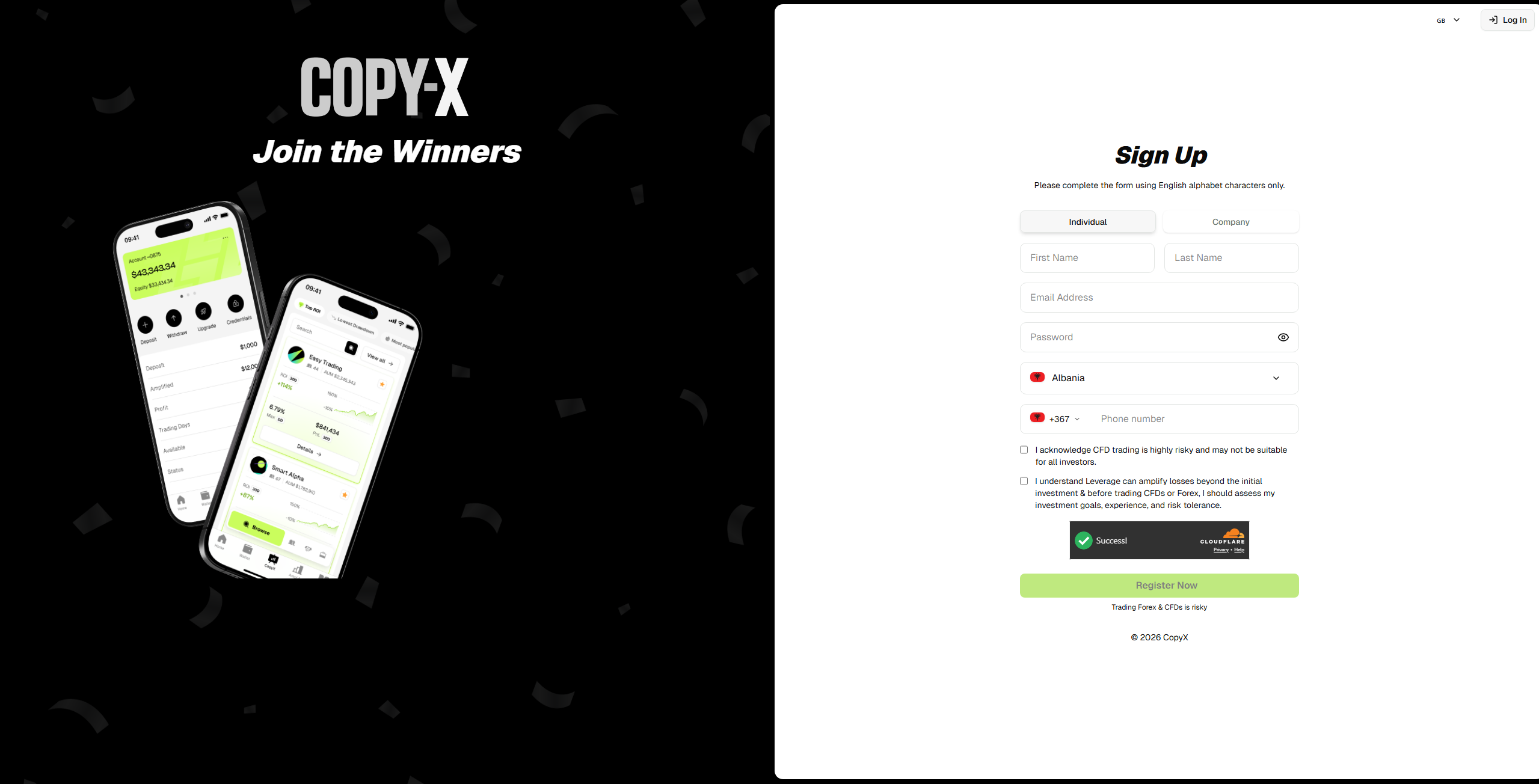
    Empty CopyX registration form with contact fields and Register Now button
    CopyX registration form
  2. 02Verify your emailOpen the message from CopyX and confirm the address

    Confirm your account · CopyX

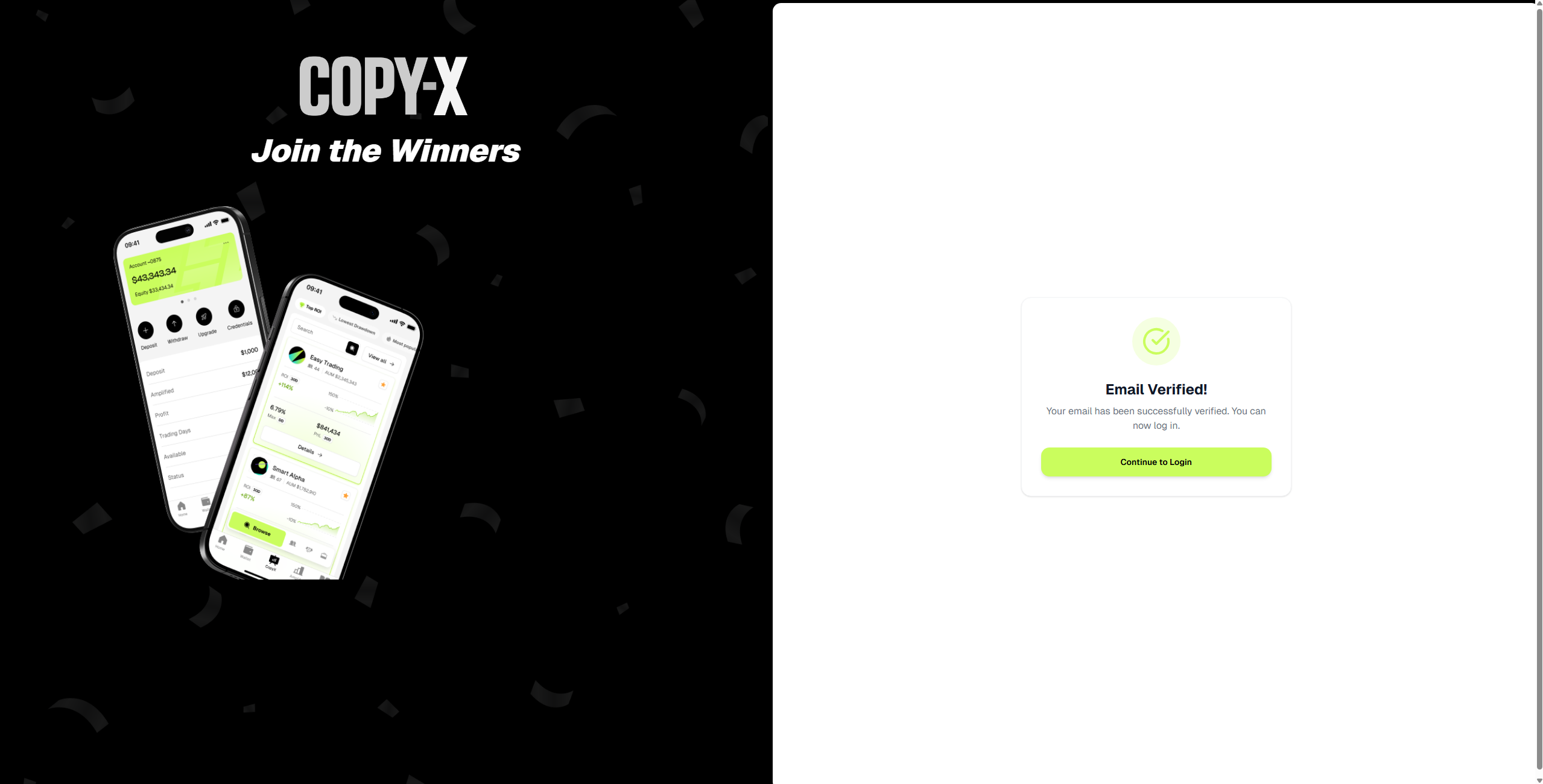
    Use the link in your inbox.

    1. Open the verification email sent by CopyX.
    2. Follow its confirmation link.
    3. Return to CopyX once the address is marked as verified.
    CopyX email address verified confirmation; personal address cropped out
    Email verified
  3. 03Complete the surveyAnswer the suitability questions yourself

    Your profile · CopyX

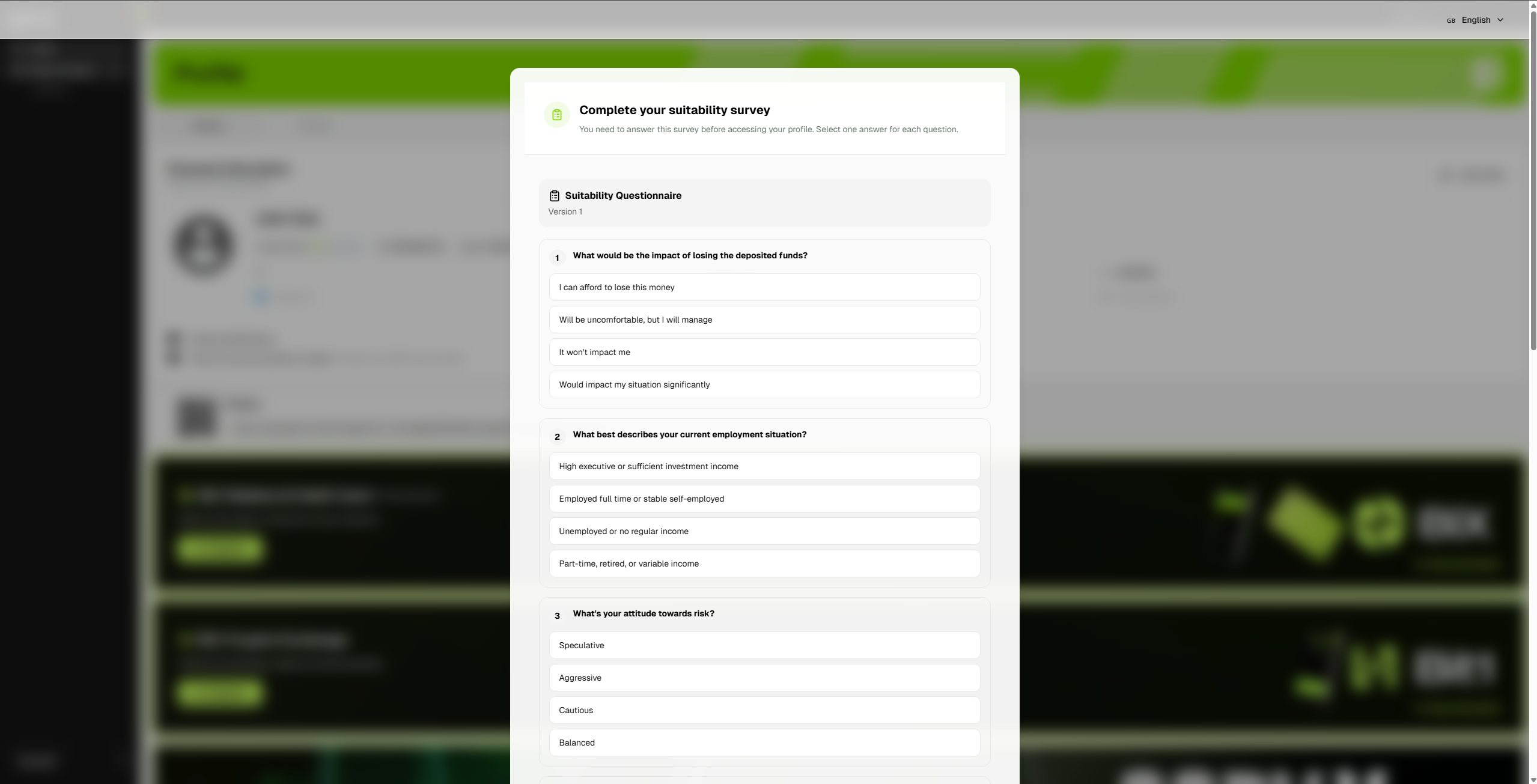
    Complete and submit the survey.

    1. Work through the questions shown in your account.
    2. Choose answers that accurately describe you; the example screen is not an answer key.
    3. Submit the survey and continue when CopyX shows it as complete.
    CopyX suitability survey with unselected answer choices
    Suitability survey
  4. 04Start KYC and upload your documentsComplete identity verification in TAG Markets

    Identity check · TAG Markets

    Follow the verification steps on screen.

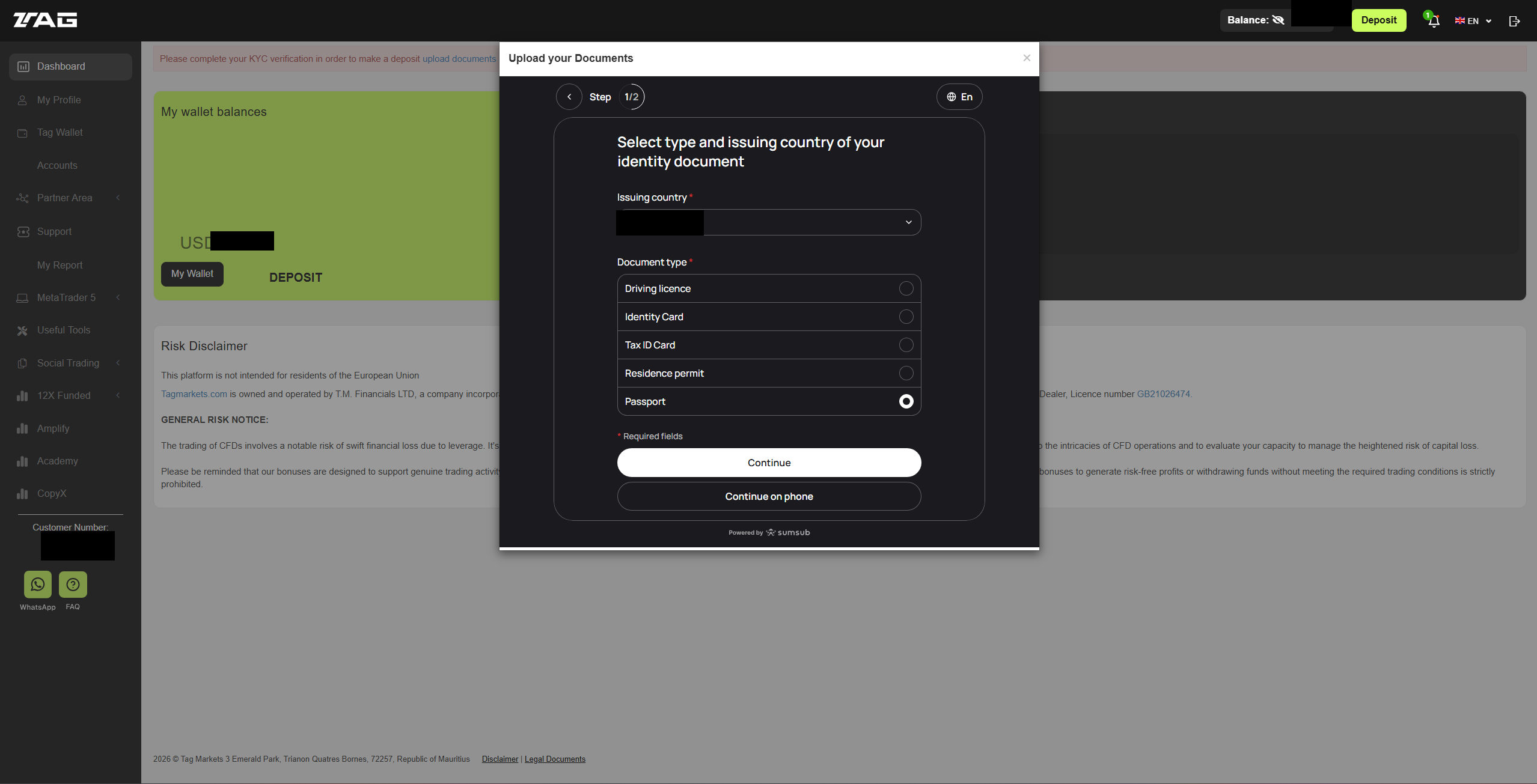
    1. Open the identity verification prompt in your TAG account.
    2. Select an accepted identity document.
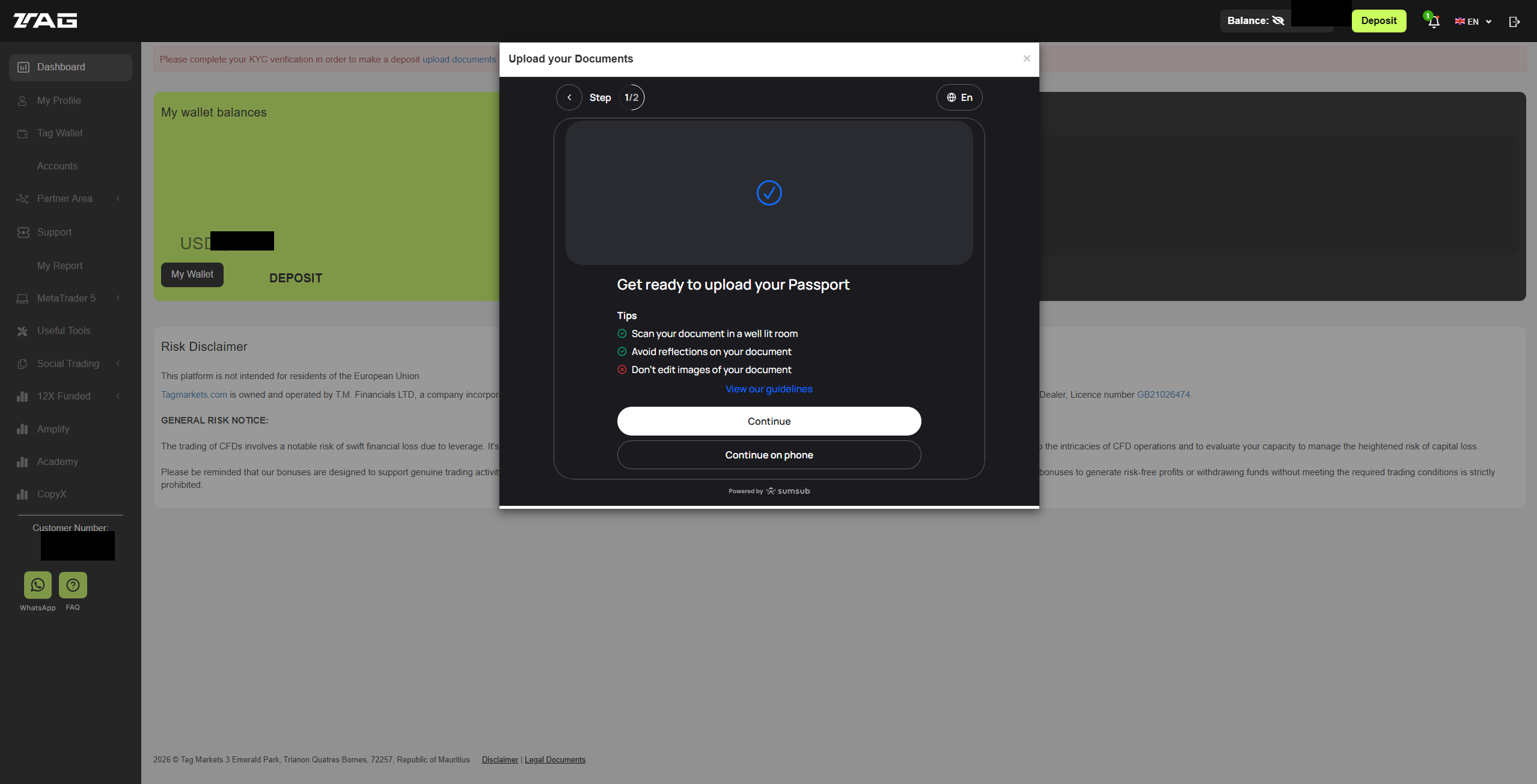
    3. Follow the instructions to photograph or upload the document and complete any requested selfie/liveness check.
    4. Wait for the verification status to update before moving on.
    Identity verification screen for selecting an identity document
    Select a document
    Instructions for photographing an identity document; no personal document is shown
    Follow the document photo instructions
  5. 05Deposit funds using your chosen methodSelect a method and complete the payment

    Funding · TAG Markets

    Choose the method you want to use.

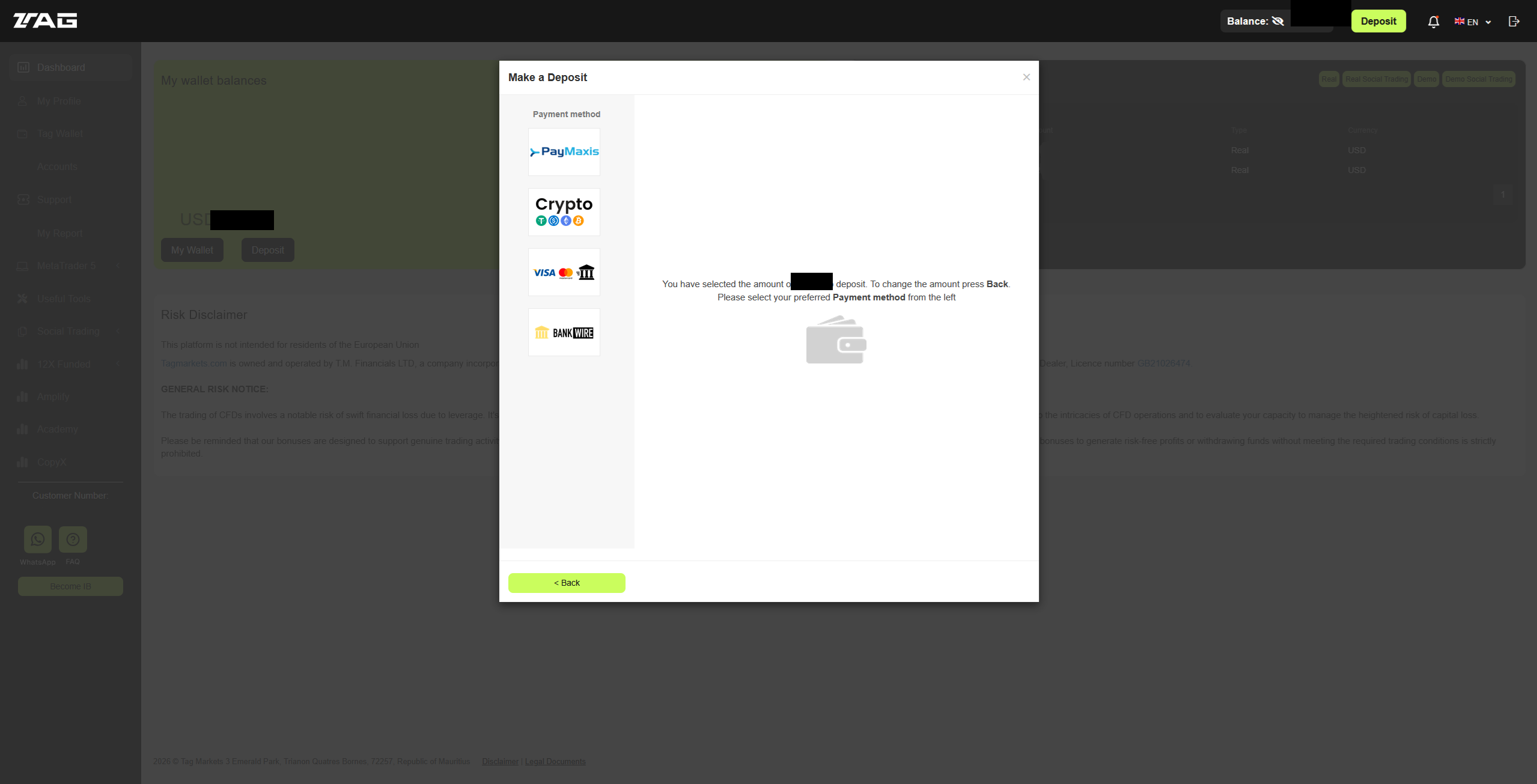
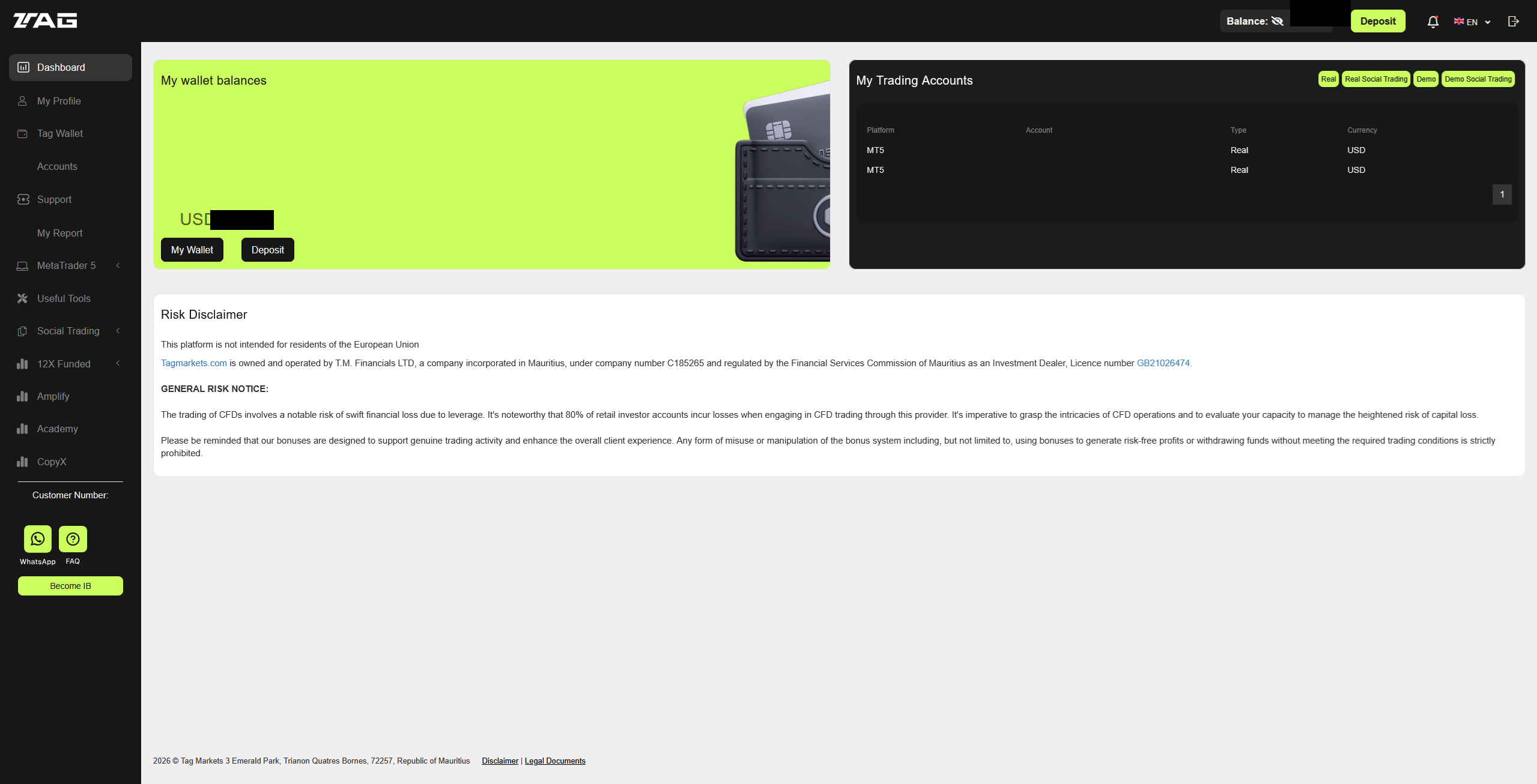
    1. Open Deposit in your TAG Markets dashboard.
    2. Select an available payment method and enter the amount you choose.
    3. Review the payment details and any displayed fee before confirming.
    4. Wait until the funds appear in your TAG account before continuing.
    Full TAG Markets deposit screen and available payment methods; selected amount is masked
    Choose your payment method
  6. 06Open CopyX in TAG MarketsUse the CopyX item in your TAG account navigation

    Open the copy-trading area · TAG Markets

    Select CopyX from the dashboard.

    1. Sign in to your TAG Markets account.
    2. Choose CopyX in the account navigation.
    3. Continue to the strategy list.
    CopyX menu item in TAG Markets navigation; customer number excluded
    CopyX in TAG Markets
  7. 07Select Sonic and press ConnectOpen the Sonic strategy from the CopyX list

    Choose the strategy · CopyX

    Open Sonic and choose Connect.

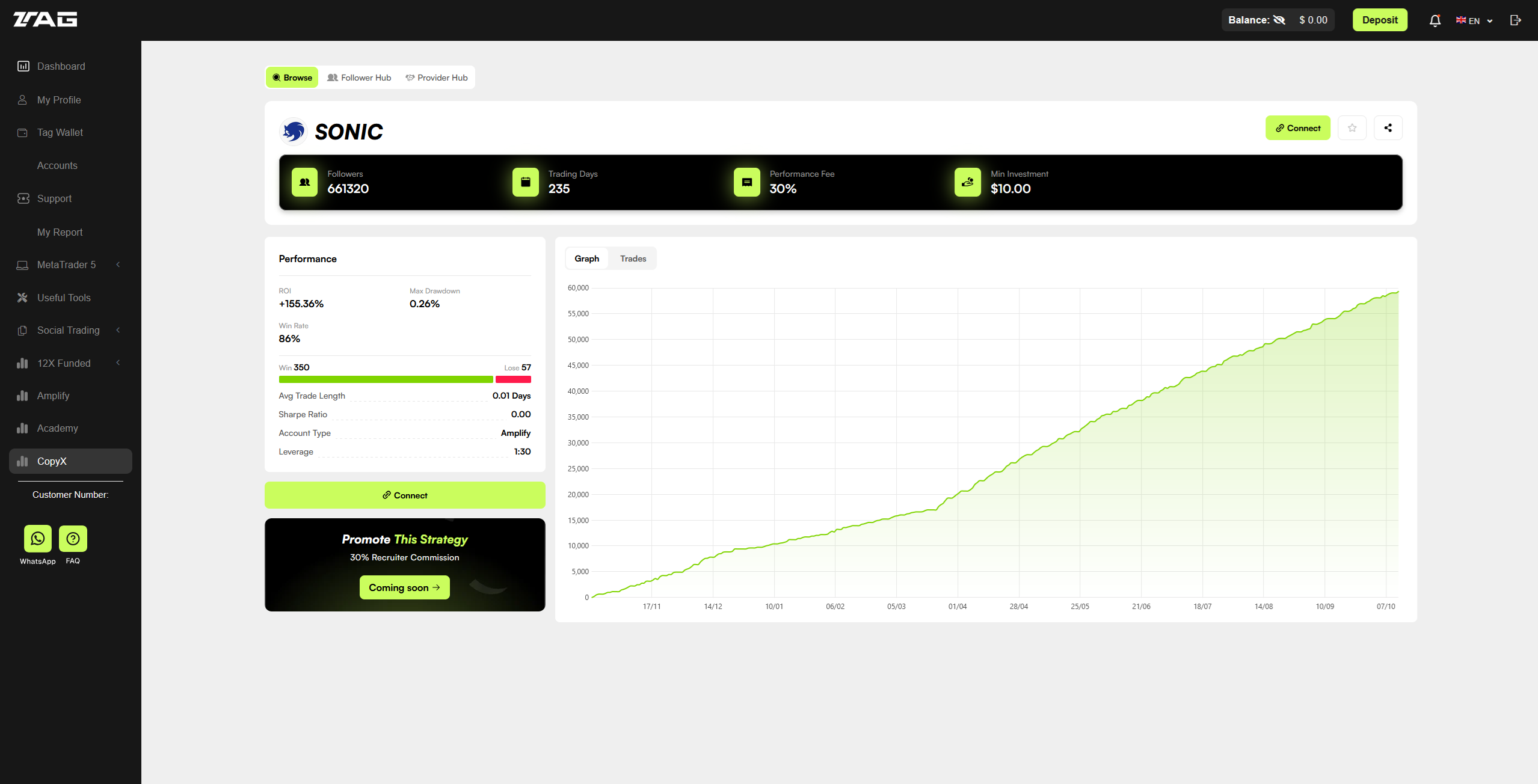
    1. Find Sonic in the strategy list.
    2. Open its page and select Connect.
    3. Continue to the investment settings.
    Full CopyX screen showing the Sonic strategy and where the Connect buttons are located
    Full Sonic strategy screen · Connect
  8. 08Enter your amount, #DW and matching GU-IDThe form opens after Connect on the full Sonic screen above

    Connection settings · CopyX

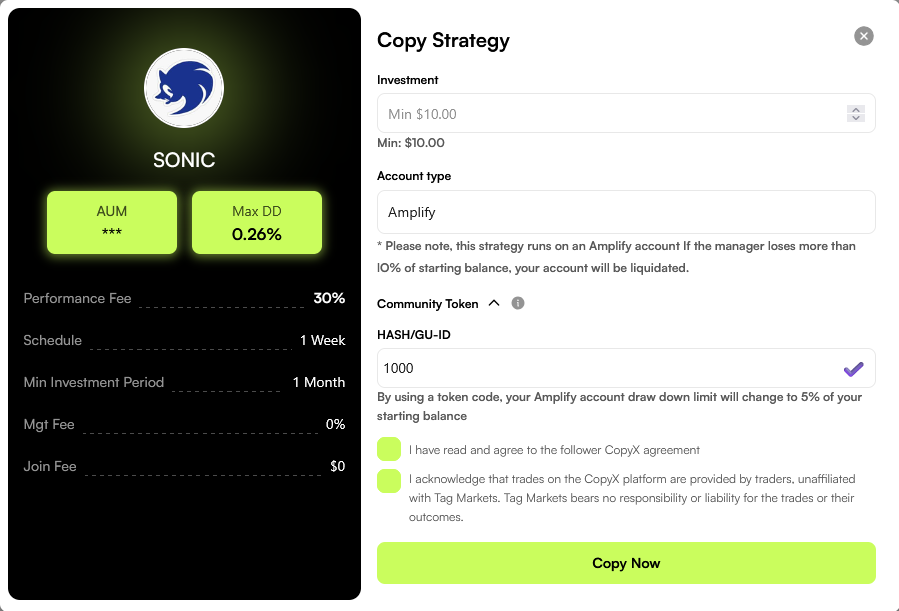
    Match the Investment and HASH/GU-ID amounts.

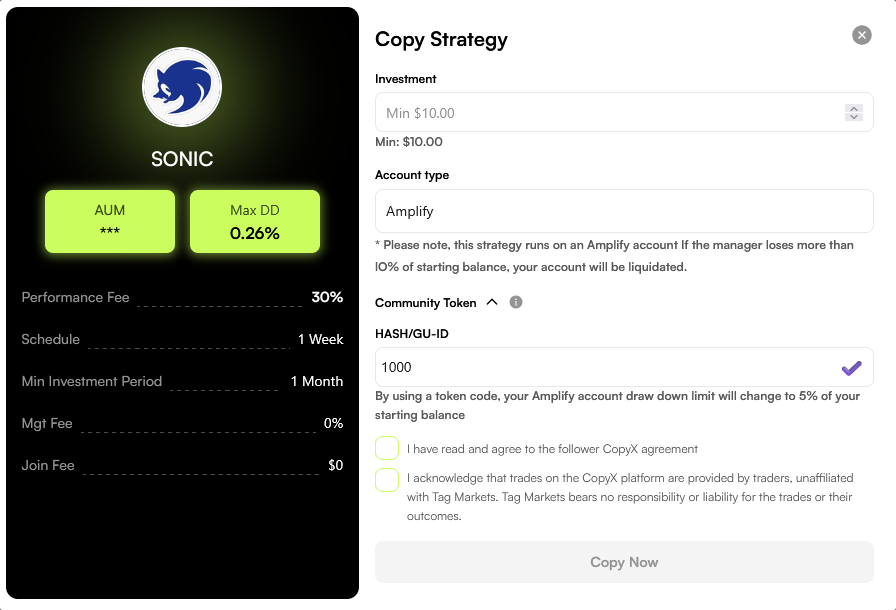
    1. Enter your chosen amount in the Investment field.
    2. Use #DW as the community token. Enter the same amount as Investment in the HASH/GU-ID field.
    3. Review the account type and the terms shown in your own form.

    The recorded screenshots show 1000 in HASH/GU-ID but leave Investment blank. They do not show matching amounts; use 1000 only if it is the amount you chose to invest.

    Recorded Copy Strategy form showing HASH/GU-ID 1000; Investment is blank
    Recorded HASH/GU-ID value · 1000
    Copy Strategy form with HASH/GU-ID 1000 and the Investment amount left blank in the recording
    Investment field · amount not entered in recording
  9. 09Confirm the connectionFinish the form and verify Sonic appears under Active

    Complete the setup · CopyX

    Click Copy Now, then check Active.

    1. Read the acknowledgements and account terms shown in your form.
    2. When your amount and community token/GU-ID are entered, submit with Copy Now.
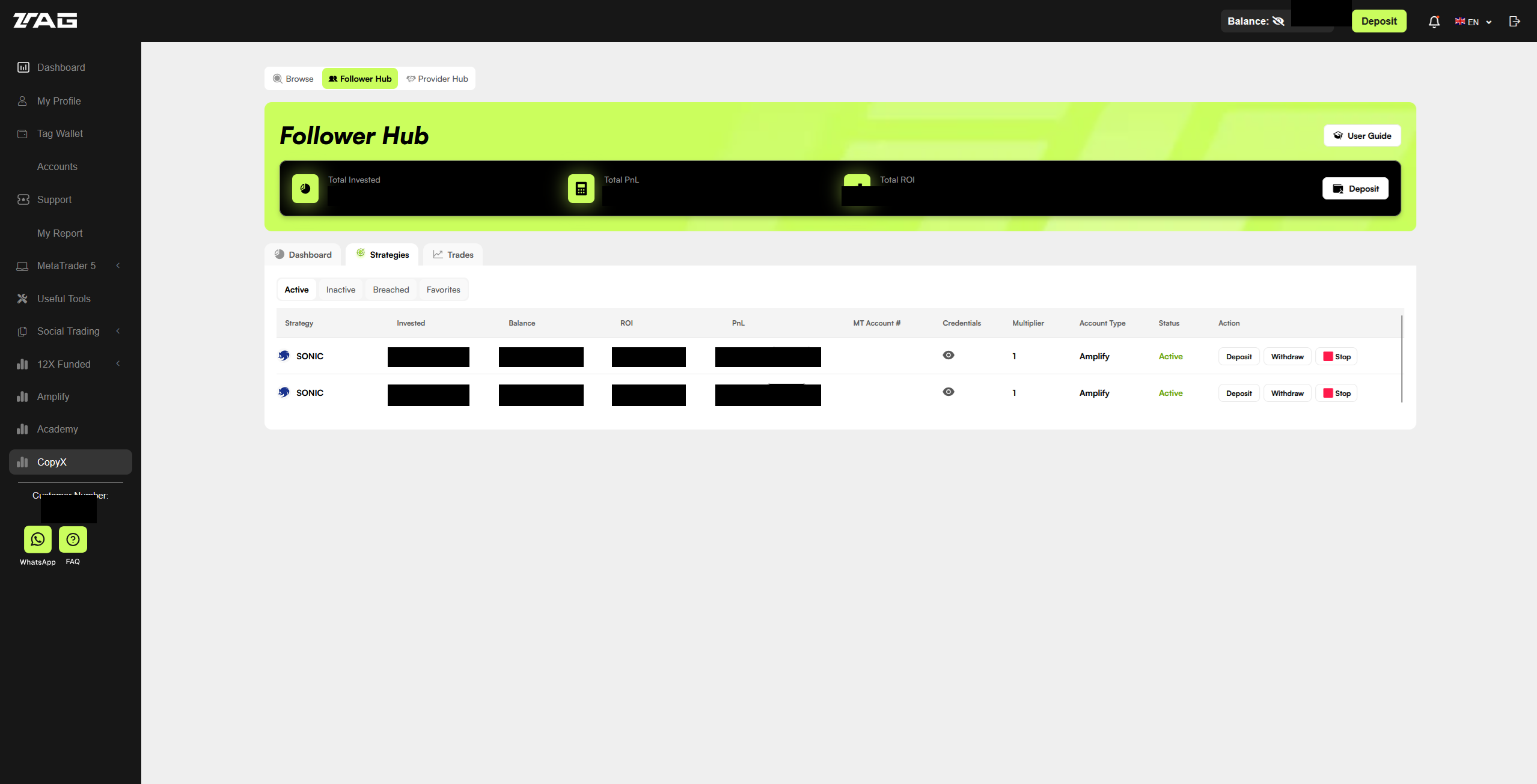
    3. Check the Active strategies area for Sonic and confirm the connection is active.

    Once CopyX confirms Sonic under Active, the selected amount is connected to the strategy: your investment setup is complete. The image is an example of the Active screen, not proof of the transition from your own account.

    Redacted example of the CopyX Active strategies area showing Sonic; account identifiers masked
    Check for Sonic under Active

That’s the setup.
We may earn a commission through the CopyX link.

Create my CopyX account

Need a hand?

Take it one step at a time.

For account-specific questions, contact TAG Markets support.

Visit TAG’s help centre

Back to UpShiftX